Tags
Group links by campaign, channel, or client and filter them in lists and analytics.
A tag is an organization-level label you attach to links. It is not a UTM parameter, a slug, or a customer trait. Tags exist so a campaign, a channel, or a client can be filtered in one click.
What tags are for
Use them when you want to ask:
- “Show every link in the launch campaign.”
- “Analytics for the YouTube placements only.”
- “Which newsletter links are still active?”
Do not use a tag as a substitute for a sublink. Two placements of the same destination still need two sublinks if you want separate click and revenue numbers. A tag groups those sublinks; it does not replace them.
UTM parameters are for the destination’s own analytics (GA, ads). Tags are for Kliq’s list and analytics filters.
Create a tag
Open Tags → New tag. Owners and admins can create, rename, recolor, delete, and attach tags. Members can see the list; they cannot create links or change tag assignments.
Rules:
- Names are stored lowercase, 1–40 characters.
- Allowed characters: letters, numbers, spaces, hyphens, dots, underscores.
- Colors are a fixed palette. Creating from the link picker without a color picks one at random.
- Duplicate names return the existing tag instead of failing. That is how the inline picker on the create-link form works.
- Tag lists and pickers show the first 200 tags in an organization.
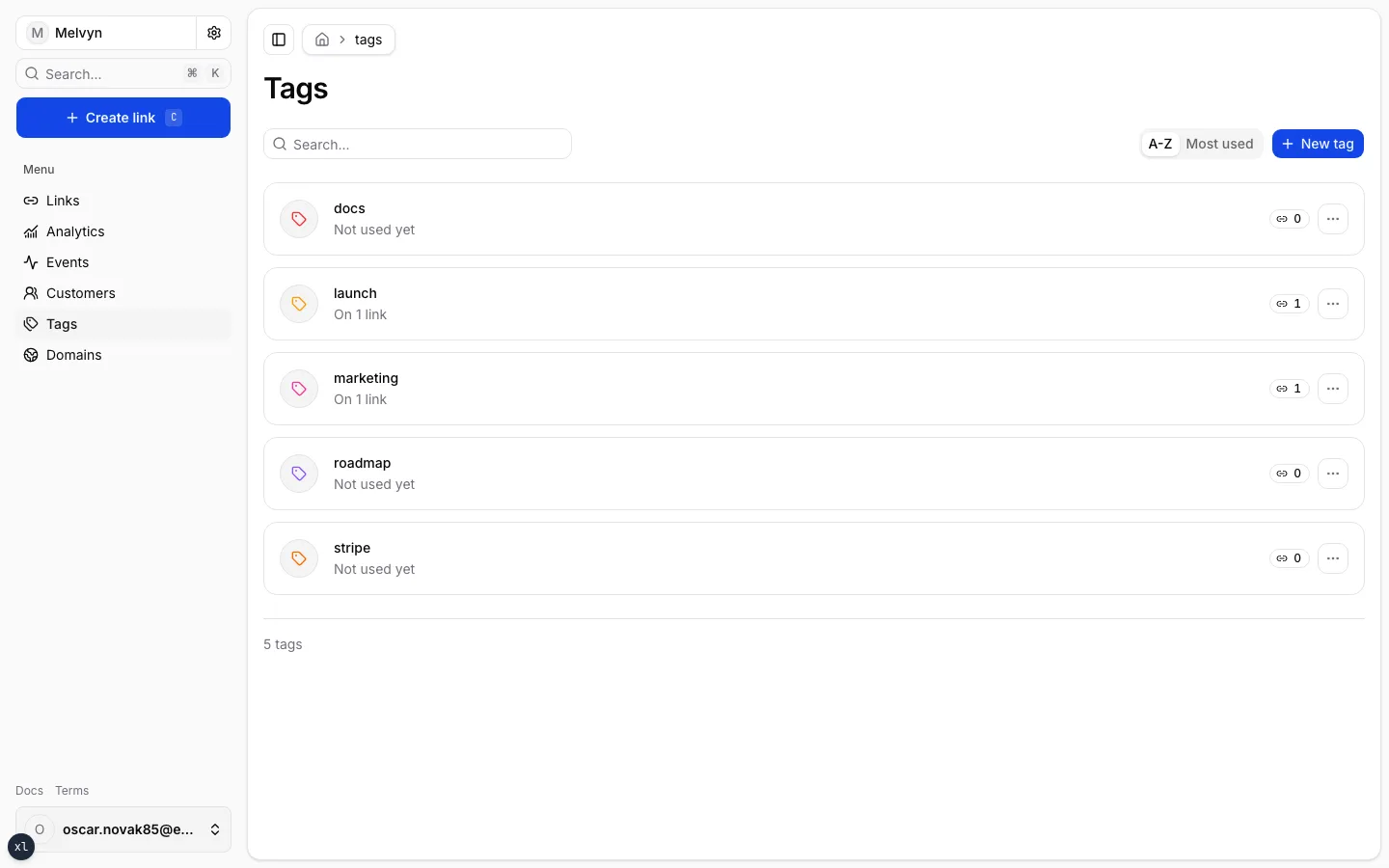
Each row shows how many links currently carry the tag. Sort A–Z or Most used. Open a tag’s menu to edit it or jump to the links list filtered to that name.
Deleting a tag removes the label from every link. The links stay.
Attach tags to a link
On Create link or Edit, the Add tags field is a picker:
- Search and check existing tags.
- Type a new name and create it inline.
- Apply smart suggestions when the destination fetch proposes names from the URL and the org’s existing tags.
A link can carry at most 10 tags.
Filter by tag
- Links — Filter → Tag. Tag filters travel in the URL as names, so a filtered list stays readable and survives a tag id change.
- Analytics — Filter → Tag. The page then reports clicks, leads, and revenue only for links that carry that tag.